




How to fill PDF forms in SharePoint Online using Nutrient Web SDK

Table of contents

- Integrate Nutrient Web SDK into SharePoint Online as a web part
- Fill PDF forms programmatically using XFDF or Instant JSON
- Access the same APIs as Nutrient Web SDK Standalone for customization
Deprecation notice: The PSPDFKit for SharePoint integration described in this post is deprecated. For new projects, we recommend integrating Nutrient Web SDK directly into your SharePoint solution. See the product archives for more information.
In this tutorial, you’ll learn how to add your data into a fillable PDF form in SharePoint Online. Using the Nutrient Web SDK integration for SharePoint, you can view, create, and automate PDF form filling directly in your SharePoint browser.
Integrating Nutrient Web SDK into SharePoint Online as a web part
PSPDFKit for SharePoint is built on top of Nutrient Web SDK Standalone, a client-side JavaScript library for viewing and editing PDF documents in a web browser. It shares the same APIs as Nutrient Web SDK Standalone, so refer to the Web documentation for customizing your SharePoint application.
Try Our No-Code App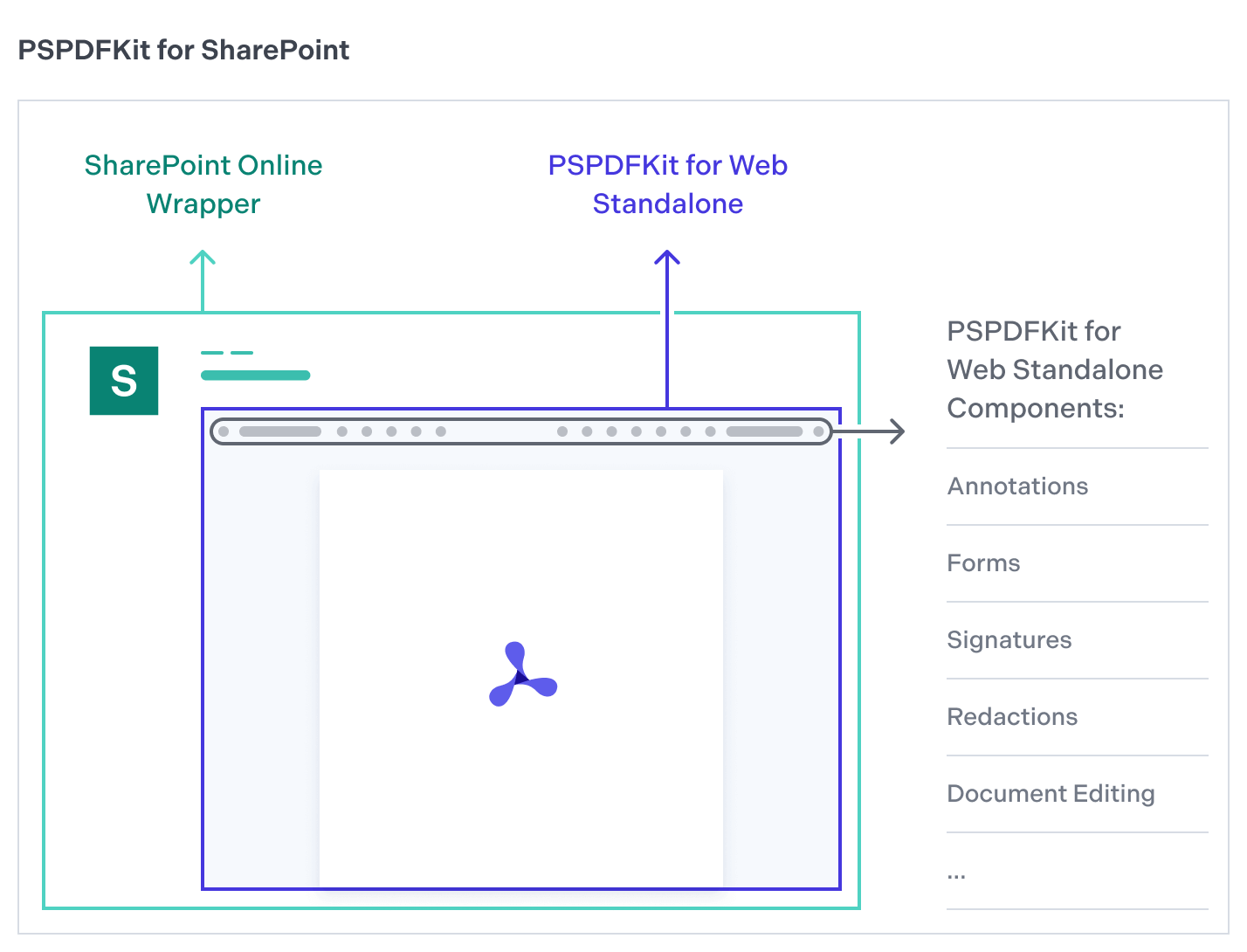
Requirements
- A Microsoft 365 tenant(opens in a new tab) (sign up for the Microsoft 365 Developer Program(opens in a new tab) to set up a Microsoft 365 tenant for free)
- The SharePoint Framework(opens in a new tab) (SPFx)
- A GitHub(opens in a new tab) account (for cloning the PSPDFKit for SharePoint repository)
- Node.js version 16.19.0(opens in a new tab)
Setup
- Clone the
pspdfkit-sp-online-webpart(opens in a new tab) repository from GitHub by navigating to the desired directory and entering the following command in your command line/terminal:
git clone https://github.com/PSPDFKit/pspdfkit-sp-online-webpart.gitAlternatively, download the project as a .zip file.
- Sign in to your tenant account at admin.microsoft.com(opens in a new tab).
Click Show all in the side navigation, and find Admin centers > SharePoint to access the SharePoint admin portal.
Follow this Microsoft tutorial(opens in a new tab) to configure your SharePoint tenant and create a new team site.
- In the
pspdfkit-sp-online-webpartproject’sconfig/serve.jsonfile, replaceenter-your-SharePoint-sitewith your SharePoint site’s URL:
"initialPage": "https://enter-your-SharePoint-site/_layouts/workbench.aspx",- Set up your development environment(opens in a new tab) to build a client-side web part.
Remember to run gulp trust-dev-cert from the project’s root to trust the self-signed developer certificate.
- Change your directory to the
pspdfkit-sp-online-webpartdirectory:
cd pspdfkit-sp-online-webpart- Check your Node.js version:
node --versionEnsure you have Node.js version 16.19.0 installed. If not, switch to this version using nvm(opens in a new tab) (Node Version Manager) or asdf(opens in a new tab).
- Install the dependencies:
npm install- Serve the project:
npm run serveYour SharePoint account will open in a new browser tab.
Integrating PSPDFKit into SharePoint
You can add PSPDFKit to your project as a widget using the user interface (UI) elements. Follow the video tutorial or the instructions below to integrate the PSPDFKit widget into your project.
- On your Home page, click Edit in the upper right-hand corner to open the editing interface.
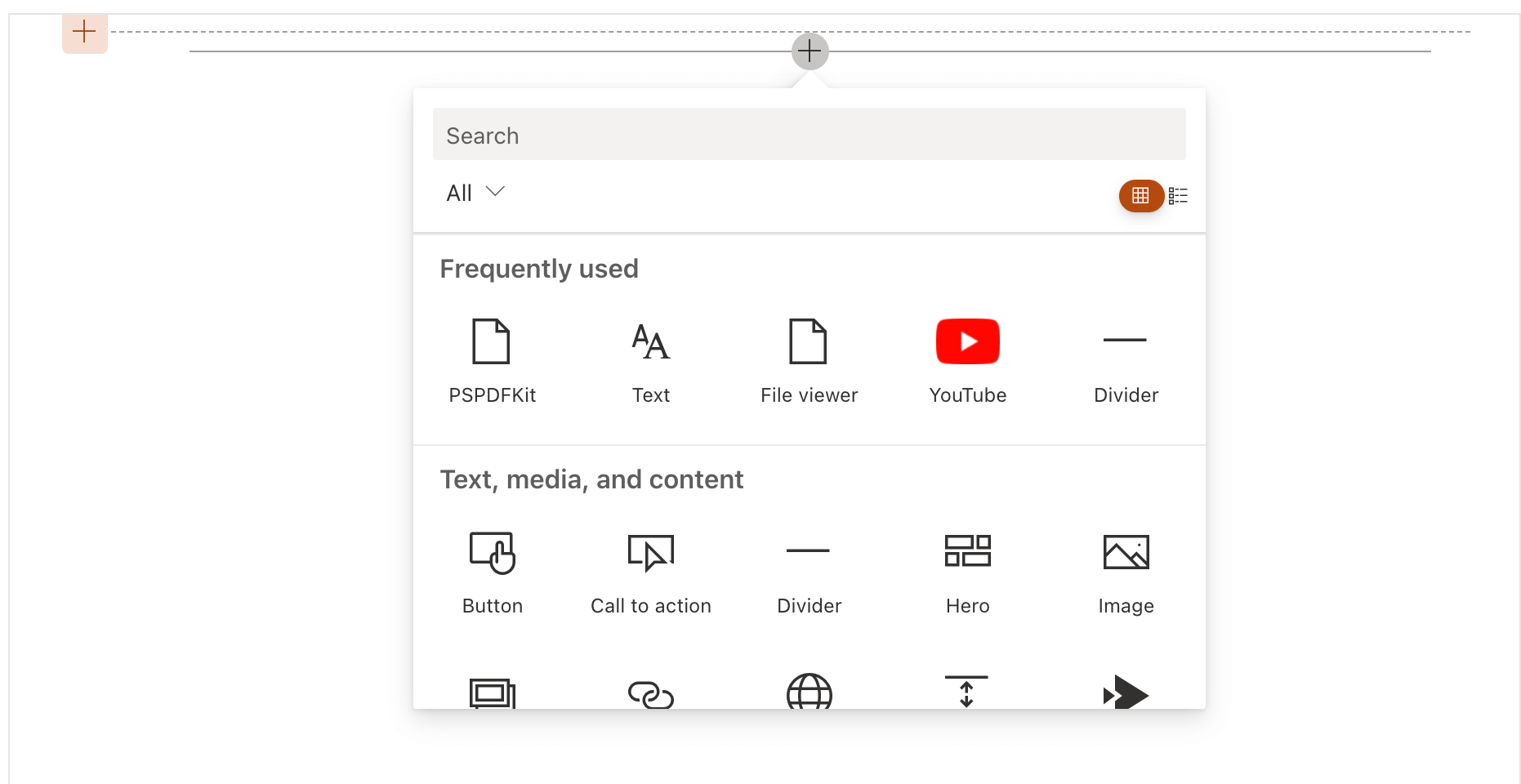
- Hover over the desired location for the PSPDFKit widget and click the plus icon that appears. This opens a dialog box with the available web parts.
- Search for the PSPDFKit widget and select it.
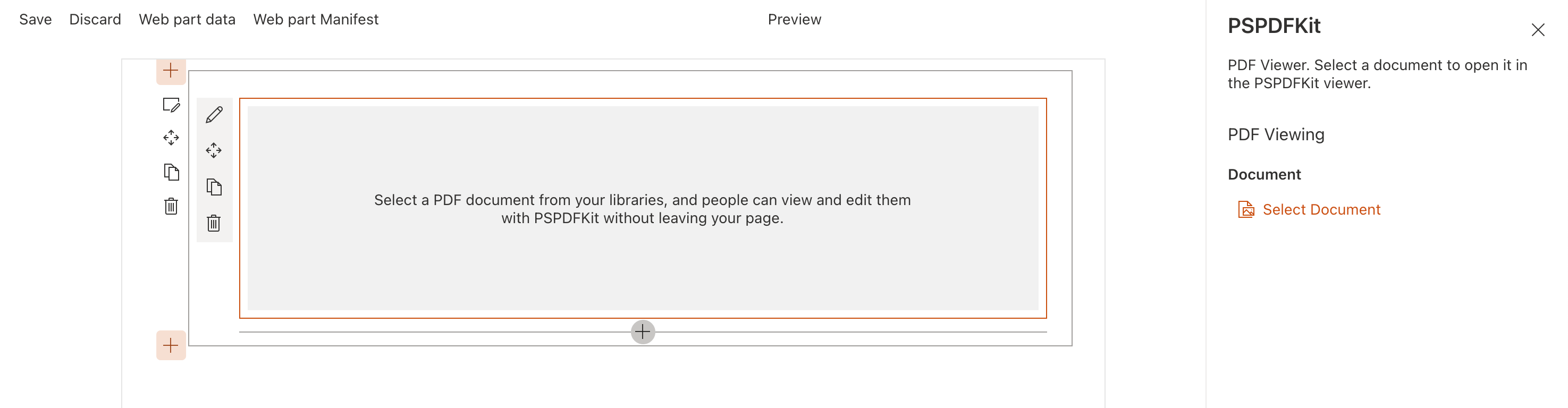
- Click the pencil icon’s Edit web part button and click Select Document from the open panel.
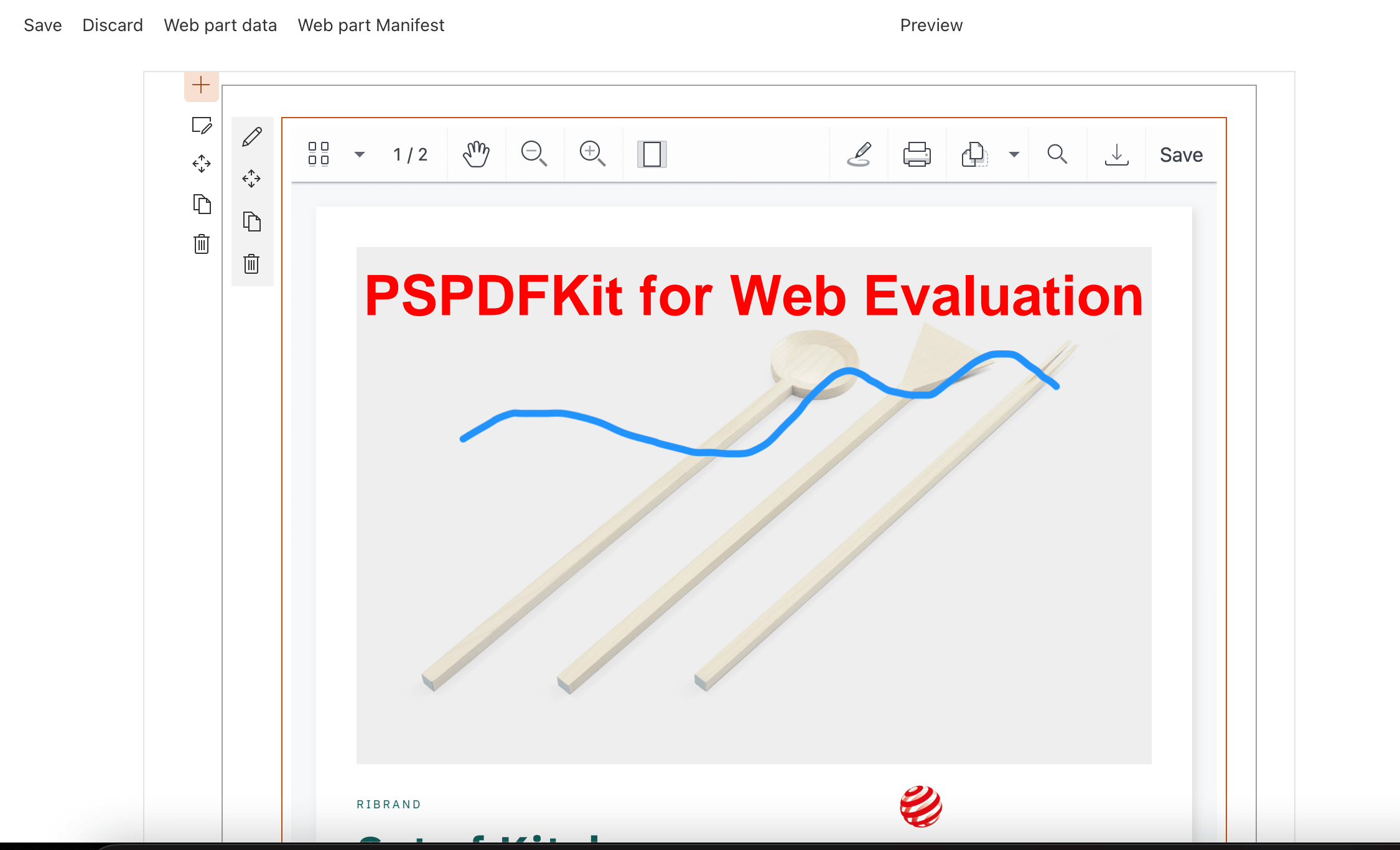
- Choose your document and click Open. The PSPDFKit widget will now appear in your project.
Form filling with Nutrient
Nutrient provides form filling through UI components and programmatic APIs.
- UI form filling — PSPDFKit’s prebuilt UI components let users navigate and complete PDF forms. They can fill in text fields, select options from dropdown menus, and interact with checkboxes and radio buttons. See it in action by exploring the demo.
- Programmatic form filling — Nutrient Web SDK offers these options for programmatic form filling:
- PSPDFKit Server — Persist, restore, and synchronize form field values across devices without building something yourself.
- XFDF — Exchange form field data with other PDF readers and editors.
- Instant JSON — Export and import changes made to form fields.
- Manual API — Extract, save, and manipulate form field values directly.
PSPDFKit also provides an option for creating PDF forms:
- PDF Form Creator — Create PDF forms with a point-and-click UI or via the API. Convert static forms into fillable forms, or modify existing forms by letting your users create, edit, and remove form fields in a PDF.
Filling forms with XFDF
The XML Forms Data Format (XFDF) is a standard format for representing form data in PDF documents. It allows you to import and export form field values, making it an ideal choice for integrating form filling capabilities with Nutrient.
To import data into PDF forms using XFDF, open the src/webparts/PSPDFKit/components/PSPDFKitViewer.tsx(opens in a new tab) file and modify the NutrientViewer.load() function(opens in a new tab) as follows:
const XFDF = `<?xml version="1.0" encoding="UTF-8"?>  <xfdf xml:space="preserve" xmlns="http://ns.adobe.com/xfdf/">    <annots></annots>    <fields>      <field name="Form field 1">        <value>Text for form field 1</value>      </field>    </fields>    <ids modified="8AFBEA0B224C4F2BAE69171EF4FCE3C0" original="CC968B2893024520A316261F10B8978C"/>  </xfdf>`;
NutrientViewer.load({  XFDF,});
The code above demonstrates how to prefill the form field named “Form Field 1” with the text “Text for form field 1” using the NutrientViewer.load() method.
You can also import form field values as XFDF using document operations, available with the Document Editor license component:
const xfdf = `<?xml version="1.0" encoding="UTF-8"?>  <xfdf xml:space="preserve" xmlns="http://ns.adobe.com/xfdf/">    <annots></annots>    <fields>      <field name="Form field 1">        <value>Text for form field 1</value>      </field>    </fields>    <ids modified="8AFBEA0B224C4F2BAE69171EF4FCE3C0" original="CC968B2893024520A316261F10B8978C"/>  </xfdf>`;
instance.applyOperations([  {    type: 'applyXfdf',    xfdf,  },]);
In this code snippet, the applyOperations() method is used to apply XFDF data to the PDF form fields.
Filling forms with Instant JSON
To import data into PDF forms using Instant JSON in PSPDFKit, you can use the following code snippets.
Open the src/webparts/PSPDFKit/components/PSPDFKitViewer.tsx(opens in a new tab) file and modify the NutrientViewer.load() function(opens in a new tab) as follows:
instance = await NutrientViewer.load({ // Container where PSPDFKit should be mounted. container, // The document to open. document: documentURL, toolbarItems: [...PSPDFKit.defaultToolbarItems, saveItem], instantJSON: { format: 'https://pspdfkit.com/instant-json/v1', formFieldValues: [ { name: 'Form Field 1', value: 'Text for form field 1', type: 'pspdfkit/form-field-value', v: 1, }, // Add more form field values as needed. ], },});Document Editor license component — Use the applyOperations method to import Instant JSON data. Modify the code inside the NutrientViewer.load() method as follows:
instance = await NutrientViewer.load({  container,  document: documentURL,  toolbarItems: [...PSPDFKit.defaultToolbarItems, saveItem],});
// Import Instant JSON data.instance.applyOperations([  {    type: 'applyInstantJson',    instantJson: {      format: 'https://pspdfkit.com/instant-json/v1',      formFieldValues: [        {          name: 'Form Field 1',          value: 'Text for form field 1',          type: 'pspdfkit/form-field-value',          v: 1,        },        // Add more form field values as needed.      ],    },  },]);
Make sure to adjust the formFieldValues array with the desired form field names and values you want to prefill.
With the updated code and the instructions above, you’ll be able to use Instant JSON to prefill form field values in your PSPDFKitViewer component.
Conclusion
In this tutorial, you learned how to integrate PSPDFKit into SharePoint Online as a web part and how to fill PDF forms using Nutrient’s SDK.
With PSPDFKit integrated into your SharePoint application, you can automate form filling and work with PDFs directly in the browser. This setup works well for teams that handle many PDF forms in SharePoint Online.
To see a list of all web frameworks, contact our Sales team. Or, launch our demo to see our viewer in action.

