




Top JavaScript PDF generator libraries for 2026

Table of contents

This guide compares the top JavaScript PDF generator libraries for 2026, including:
It includes code examples for each library in Node.js and browser environments.
A JavaScript PDF generator library abstracts the PDF file format so you can create, modify, and export documents programmatically in the browser or in Node.js. Instead of working with raw byte streams, you use a high-level API to add text, images, shapes, and fonts, control layout and pagination, merge or split files, and stream downloads to users.
1. Nutrient Web SDK: Enterprise JavaScript PDF generator and viewer
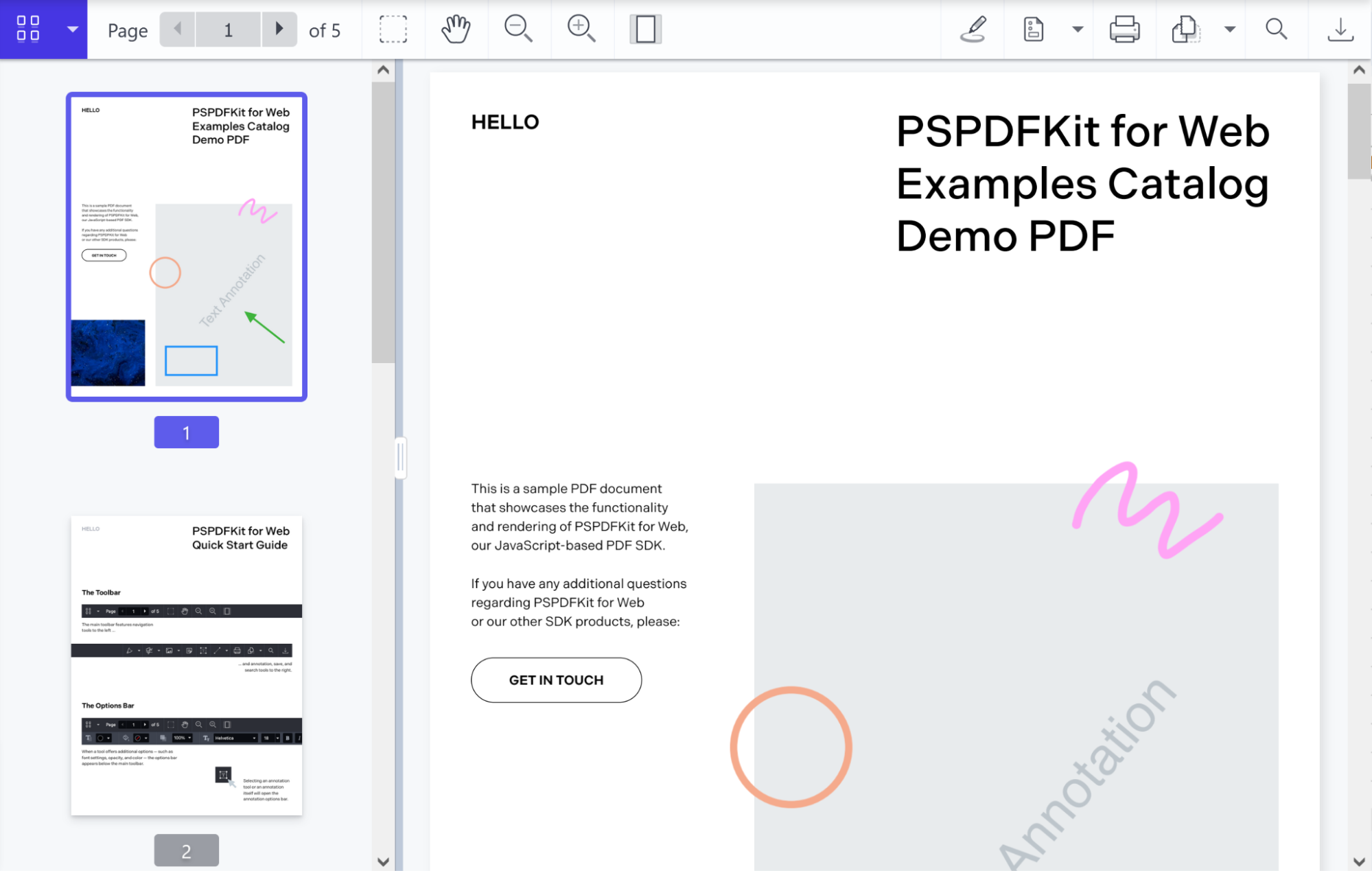
Nutrient Web SDK is an enterprise-grade JavaScript library for generating, viewing, and editing PDFs in the browser. It provides accurate rendering, annotation, and collaboration features.
PDF generation capabilities
- Create from template — Insert text or images and prefill forms using existing PDF or Word templates.
- Generate from images — Convert JPG, PNG, or TIFF files into PDF documents.
- Thumbnail previews — Render PDF pages as thumbnail images for gallery or navigation UIs.
- Saving options — Export your generated PDFs to an
ArrayBufferor browser storage, or upload to a remote server. - Headless operation — Produce PDFs without displaying any UI components — ideal for automated backend workflows.
- Extendable — Seamlessly add features like form filling, digital signing, annotation, collaboration, and more.
When to use Nutrient Web SDK as your JavaScript PDF generator
- Enterprise applications needing robust PDF generation workflows (invoices, reports, contracts)
- Scenarios combining generation with interactive editing, annotation, and real-time collaboration in the browser
- Use cases requiring server-side PDF automation integrated with a client-side viewer
- Projects that need high security (encryption, access controls) and audit trails during PDF creation
- Teams seeking an integrated solution for both generation and rich document interactions
Getting started with Nutrient Web SDK
Install the @nutrient-sdk/viewer package:
npm i @nutrient-sdk/viewerpnpm add @nutrient-sdk/vieweryarn add @nutrient-sdk/viewerTo run Nutrient Web SDK in the browser, copy the required library files (artifacts) to your assets folder:
cp -R ./node_modules/@nutrient-sdk/viewer/dist/ ./assets/Make sure your assets/ folder contains:
nutrient-viewer.js(entry point)- A
nutrient-viewer-lib/directory with the required runtime assets
Integrating into your project
- Add the PDF document you want to display (e.g.
document.pdf) to the root of your project. You can use our demo document as an example. - Create your HTML file (e.g.
index.html) with a viewer container and a download button:
<!DOCTYPE html><html lang="en"> <head> <meta charset="UTF-8" /> <title>Nutrient PDF Generator Example</title> <script src="assets/nutrient-viewer.js"></script> </head> <body> <!-- 1. Download button --> <button id="download-btn">Download PDF</button> <!-- 2. PDF viewer mount point --> <div id="nutrient" style="width:100%; height:80vh;"></div> <script src="index.js"></script> </body></html>In your main JavaScript file (e.g.
index.js), load the viewer using the globalwindow.NutrientViewerAPI:let instance;// 1. Load the Nutrient viewer.window.NutrientViewer.load({container: "#nutrient",document: "example.pdf", // Path to your PDF document.}).then((inst) => {instance = inst;}).catch((err) => {console.error("Viewer load error:", err);});// 2. Hook up the Download button.document.getElementById("download-btn").addEventListener("click", async () => {if (!instance) return console.warn("Viewer not ready");try {// Export the current PDF as a buffer.const buffer = await instance.exportPDF();// Create a Blob and trigger download.const blob = new Blob([buffer], { type: "application/pdf" });const url = URL.createObjectURL(blob);downloadPdf(url);URL.revokeObjectURL(url);} catch (err) {console.error("Export/download failed:", err);}});// 3. Generic download helper.function downloadPdf(href) {const a = document.createElement("a");a.href = href;a.download = "download.pdf";document.body.appendChild(a);a.click();document.body.removeChild(a);}
Clicking Download PDF exports the document — including annotations and form data — as a Blob and triggers a browser download.
Run the project
Use a static file server like serve to launch your site locally:
npx serve .# ornpm install --global serve && serve .Navigate to http://localhost:3000 to view the website.
Related reading:
- Automate your document creation with a PDF generator
- Node.js PDF generator: How to generate PDFs from HTML with Node.js
- How to export to PDF using React
- How to generate PDF event tickets
- How to generate PDF invoices from HTML in Java
- How to build a PowerPoint (PPT/PPTX) viewer in JavaScript
- How to open Excel (XLS and XLSX) files in the browser with JavaScript
- How to build a React.js file viewer: PDF, image, MS Office
- How to open Word (DOC and DOCX) files in the browser with JavaScript
Additional Nutrient PDF generation tools
Nutrient also provides PDF generation SDKs for other platforms:
- Nutrient Node.js SDK — Advanced server-side PDF creation, manipulation, and optimization for Node.js apps.
- Nutrient .NET SDK — PDF generation and processing in .NET desktop or server environments.
- Nutrient iOS SDK — Native PDF creation and export for iOS apps.
- Nutrient Android SDK — HTML- and DOCX-to-PDF generation in Android applications.
- Nutrient React Native SDK — Cross-platform mobile PDF generation with React Native.
- Nutrient Flutter SDK — PDF creation support for Flutter apps.
- Nutrient MAUI SDK — Cross-platform .NET MAUI PDF generation.
- Nutrient Document Engine — Server-side HTML-to-PDF conversion and dynamic document assembly.
- Nutrient PDF generation API — Tech-agnostic HTTP API for generating PDFs from any backend or workflow.
These SDKs cover browser, server, and mobile environments.
2. PDFKit: A Node.js JavaScript PDF generator
PDFKit(opens in a new tab) is a Node.js library for creating multipage PDFs from scratch — text, images, shapes, and custom fonts. Although primarily server-side, it can run in the browser via Browserify(opens in a new tab).
Key PDF generation features
- Create PDFs programmatically in JavaScript (Node.js environment)
- Embed images, vector shapes, and custom fonts
- Stream output to file, HTTP response, or buffer
- (Browser) Use Browserify to bundle PDFKit for client-side generation
When to use PDFKit as your JavaScript PDF generator
- Server-side invoice/report generation in Node.js
- Complex layout generation where you need full control via code
- Streaming PDFs directly to clients (e.g. on-demand PDF downloads)
Getting started with PDFKit
Initialize a new project and create an entry file (e.g.
app.js):Terminal window mkdir my-pdfkit-appcd my-pdfkit-appnpm init -ytouch app.jsInstall PDFKit via
npm:Terminal window npm install pdfkitCreate a PDF in
app.js:const PDFDocument = require("pdfkit");const fs = require("fs");const doc = new PDFDocument();doc.pipe(fs.createWriteStream("output.pdf"));doc.text("Hello, PDFKit!");doc.end();Run the script using Node.js to generate your PDF:
Terminal window node app.jsCheck your directory for the
output.pdffile.
Related reading:
- Python HTML to PDF: Convert HTML to PDF using wkhtmltopdf
- Generate PDF invoices with PDFKit in Node.js
3. jsPDF: Browser-based JavaScript PDF generator

jsPDF(opens in a new tab) is a lightweight browser-side JavaScript PDF generator. It creates PDFs in the client from HTML content or JavaScript API calls. It also ships a Node.js build that works without additional setup.
Key PDF generation features
- Create PDFs directly in the browser (client-side) without server roundtrips
- Add text, images, shapes, and annotations via a simple API
- Generate PDFs from HTML content using plugins (e.g. html2canvas integration)
- Plugin ecosystem for extended capabilities (tables, auto-pagination, custom fonts)
When to use jsPDF as your JavaScript PDF generator
- Client-side form submissions: Generate and download PDFs in the browser immediately
- Simple reports or invoices from web forms without hitting the server
- Use cases where low bundle size and minimal setup are priorities
- Quick prototyping of PDF output in frontend projects
Getting started with jsPDF
Install jsPDF via
npm:Terminal window npm install jspdfAdd a basic HTML file to use
jsPDFin the browser:<!DOCTYPE html><html lang="en"><head><meta charset="UTF-8" /><meta name="viewport" content="width=device-width, initial-scale=1.0" /><title>jsPDF Example</title></head><body><button id="generate-pdf">Generate PDF</button><script src="node_modules/jspdf/dist/jspdf.umd.min.js"></script><script>const { jsPDF } = window.jspdf;document.getElementById("generate-pdf").addEventListener("click", function () {const doc = new jsPDF();doc.text("Hello, jsPDF!", 10, 10);doc.save("output.pdf");});</script></body></html>
Open the HTML file in a browser and click Generate PDF. It creates and downloads a PDF.
Related reading:
- How to convert HTML to PDF in React
- Generate PDFs in Salesforce with Lightning web components
- Generate a PDF from HTML with Vue.js
- How to use jsPDF and Angular to generate PDFs
- How to export to PDF using React
4. PDF-lib: JavaScript PDF generator and modifier
PDF-lib(opens in a new tab) is a JavaScript library for creating and modifying PDFs in both browser and Node.js environments. It handles generation from scratch and editing existing PDFs — filling forms, merging, and adding annotations.
Key PDF generation features
- Create new PDFs with pages, text, images, and vector graphics
- Embed custom fonts and images
- Fill and modify existing PDF forms and structure
- Merge or split documents programmatically
- Works natively in the browser and Node.js without external dependencies
When to use PDF-lib as your JavaScript PDF generator
- Applications needing both generation and modification of PDFs
- Filling out or programmatically editing existing PDF templates
- Merging multiple PDFs or adding dynamic content to an existing document
- Environments where a single library for both client-side and server-side use is ideal
Getting started with PDF-lib
Install the library via
npm:Terminal window npm install pdf-libIn
app.js, generate a PDF:const { PDFDocument, rgb, StandardFonts } = require("pdf-lib");const fs = require("fs");async function createPdf() {const pdfDoc = await PDFDocument.create();const page = pdfDoc.addPage([600, 400]);const font = await pdfDoc.embedFont(StandardFonts.HelveticaBold);page.drawText("Hello, PDF-lib JavaScript PDF generator!", {x: 50,y: 350,size: 18,font,color: rgb(0, 0, 0.8),});const pdfBytes = await pdfDoc.save();fs.writeFileSync("output.pdf", pdfBytes);}createPdf();Run your script to generate the PDF:
Terminal window node app.js
Related reading:
- How to build a JavaScript PDF editor with pdf-lib
- How to add annotations to PDF using Vue.js
- How to build a Node.js PDF editor with pdf-lib
- How to use JavaScript to capture signatures in PDFs
- How to convert images to PDF in Node.js
- How to fill a PDF form in React
- How to fill PDF forms in Node.js
- How to programmatically create and fill PDF forms in Angular
5. pdfmake: Declarative JavaScript PDF generator

pdfmake(opens in a new tab) is a declarative JavaScript PDF generator that works in both the browser and Node.js. You define the document structure via a JSON-like “document definition” object, and pdfmake handles layout, pagination, and styling.
Key PDF generation features
- Declarative document definitions (content arrays, styles, tables, lists)
- Built-in support for text styling, tables, lists, images, headers/footers
- Automatic pagination and page breaks based on content
- Embed custom fonts; support for Unicode and RTL languages
- Browser and Node.js support with a consistent API
When to use pdfmake as your JavaScript PDF generator
- Generating structured reports, invoices, and catalogs where layout is defined declaratively
- Projects where automatic pagination and complex layouts (tables, lists) are needed without manual page management
- Applications requiring rich text styling, headers/footers, and consistent formatting
- Situations where a JSON-based definition simplifies maintenance
Getting started with pdfmake
Install pdfmake via
npm:Terminal window npm install pdfmakeUse
pdfmakein the browser with the following HTML file:<!DOCTYPE html><html lang="en"><head><meta charset="UTF-8" /><meta name="viewport" content="width=device-width, initial-scale=1.0" /><title>pdfmake Example</title></head><body><button id="generate-pdf">Generate PDF</button><script src="node_modules/pdfmake/build/pdfmake.min.js"></script><script src="node_modules/pdfmake/build/vfs_fonts.js"></script><script>document.getElementById("generate-pdf").addEventListener("click", function () {const docDefinition = { content: "Hello, pdfmake!" };pdfMake.createPdf(docDefinition).download("output.pdf");});</script></body></html>Open this HTML file in your browser, and click the Generate PDF button to generate and download a PDF.
Related reading:
6. Puppeteer: Headless Chrome JavaScript PDF generator
Puppeteer(opens in a new tab) is a Node.js library that controls headless Chrome/Chromium, often used to generate PDFs from webpages or dynamic HTML content. It’s ideal when you need pixel-perfect rendering of complex layouts.
Key PDF generation features
- Render full webpages or specific DOM elements to PDF via headless browser
- Support for CSS, web fonts, and complex layouts (flex, grid)
- Control page settings: margins, format, headers/footers, print styles
- Automate PDF generation in batch or on demand from dynamic content
When to use Puppeteer as your JavaScript PDF generator
- Generating PDFs from complex HTML/CSS where the layout must match browser rendering
- Server-side snapshotting of webpages or dynamic reports (dashboards, charts)
- Situations requiring accurate print preview rendering (e.g. invoices styled via CSS)
- Automated workflows or testing pipelines that output PDFs from live pages
Getting started with Puppeteer
Create a new directory and initialize your Node.js project:
Terminal window mkdir puppeteer-pdf-appcd puppeteer-pdf-appnpm init -ytouch generatePDF.jsInstall Puppeteer. This also downloads a compatible Chromium binary:
Terminal window npm install puppeteerIn
generatePDF.js, render a webpage to PDF:const puppeteer = require("puppeteer");async function generatePDF() {const browser = await puppeteer.launch();const page = await browser.newPage();await page.goto("https://example.com", {waitUntil: "networkidle2",});await page.pdf({ path: "example.pdf", format: "A4" });await browser.close();}generatePDF();Run the script:
Terminal window node generatePDF.jsThis saves the rendered page as
example.pdf.
Comparison table
| Library | License | GitHub stars | PDF creation | PDF modification | Client-side | Server-side | Complexity |
|---|---|---|---|---|---|---|---|
| Nutrient | Commercial | — | Yes | Yes | Yes | Yes | Medium |
| PDFKit | MIT | 10.5k+ | Yes | No | Yes* | Yes | Medium |
| jsPDF | MIT | 31k+ | Yes | No | Yes | Yes* | Low |
| PDF-lib | MIT | 8.3k+ | Yes | Yes | Yes | Yes | Medium |
| pdfmake | MIT | 12.2k+ | Yes | No | Yes | Yes | Low |
| Puppeteer | Apache 2.0 | 93k+ | Yes | No | No | Yes | Medium |
- PDFKit runs in the browser via Browserify or its standalone build. jsPDF ships a Node.js build that works without additional setup.
Common pitfalls with JavaScript PDF generator libraries
- Font embedding — Most libraries only bundle a few default fonts. Custom or Unicode fonts need to be explicitly embedded, or text renders as tofu (□□□).
- CSS fidelity — Client-side libraries like jsPDF and pdfmake don’t render CSS. Only headless browsers (Puppeteer) produce layout-accurate output from HTML/CSS.
- Memory limits in the browser — Generating large PDFs client-side can exhaust browser memory, especially with high-resolution images. Move heavy workloads to the server.
- Async page loading — Puppeteer and similar tools need explicit
waitUntilstrategies. Without them, dynamic content (charts, lazy-loaded images) may be missing from the output. - File size — Embedded images and fonts inflate PDF size quickly. Compress images before embedding and subset fonts to include only the glyphs you use.
Conclusion
For server-side Node.js generation, PDFKit(opens in a new tab) excels. For client-side downloads, jsPDF(opens in a new tab) or pdfmake(opens in a new tab) work well. For modifying existing PDFs, PDF-lib(opens in a new tab) is ideal. For headless HTML-to-PDF conversion, Puppeteer(opens in a new tab) handles complex layouts. For enterprise workflows combining generation, editing, and collaboration, Nutrient Web SDK covers all three. To learn more about Nutrient, contact our Sales team or try our demo.
Related comparisons
FAQ
Yes. Nutrient Web SDK lets you convert JPG/PNG/TIFF images directly into PDF documents on the client side, with no server required. You can also capture thumbnails or full-page exports.
Use the Nutrient Node.js SDK or the PDF generation API to run headless PDF creation workflows. Merge templates, fill forms, insert pages, and apply security settings — all without any UI.
Yes. Nutrient Web SDK supports form filling in the browser and exporting the filled-in PDF. For server-side, use templates with predefined form fields and programmatically insert values.
Yes. Nutrient provides APIs to assemble documents by merging PDFs, inserting or reordering pages, and then exporting the combined PDF, either in the browser or via server-side SDKs.
You can apply encryption, set permissions (print, copy, fill), and embed audit‑ready metadata at generation time. Nutrient’s SDKs and API support all major PDF security options.


