Compare PDF text using JavaScript
Text comparison visually compares the text of pages in different documents. It’s helpful for comparing different versions of the same document, or different documents that have similar content. It’s particularly useful for documents that have undergone edits, enabling users to spot changes swiftly. The comparison runs on a per-page basis, and the user interface (UI) highlights the differences.
Nutrient Web SDK supports document and text comparison in standalone mode in the browser. For more information, refer to the operational mode guide.
Text comparison is possible in Nutrient Web SDK with the corresponding license component. Contact Sales if you’re interested in this functionality.
Check out our guide on AI-powered PDF text comparison for an enhanced comparison experience with AI capabilities.
To process two documents for comparison, provide the documents to the loadTextComparison method. The method takes an object with the following properties:
NutrientViewer.loadTextComparison({ ...defaultConfiguration, documentA: "text-comparison/static/documentA.pdf", documentB: "text-comparison/static/documentB.pdf",});In the configuration object above, set the following properties for the comparison:
documentA— The first document to compare. Pass a URL, anArrayBuffer, or an object with asourceand optionalfileName.documentB— The second document to compare. It accepts the same formats asdocumentA.
By default, text comparison performs a character-level diff, which compares two texts by examining individual characters. This method detects changes at the most granular level, identifying additions, deletions, and modifications of each character, including spaces and punctuation. However, in some cases, you may want to perform a word-level diff, which compares texts by analyzing entire words. This approach highlights changes based on the addition, deletion, or modification of whole words, making it more intuitive for general text comparisons.
To configure text comparison to perform a word-level diff, pass the wordLevel Boolean flag to the loadTextComparison method:
NutrientViewer.loadTextComparison({ ...defaultConfiguration, documentA: "text-comparison/static/documentA.pdf", documentB: "text-comparison/static/documentB.pdf", wordLevel: true});Note that the word-level diff may automatically revert to a character-level diff if the document is written in a language where word-level comparisons may not yield satisfactory results (like some Thai or Japanese text). In such cases, a warning in the console will inform you that a character-level diff is performed instead.
Page alignment
In the built-in UI, loadTextComparison compares page N of documentA against page N of documentB. Its configuration accepts each document as a URL string, an ArrayBuffer, or an object with a source and optional fileName. It doesn’t provide a per-document page range option.
If one document has pages inserted or removed relative to the other, every later page has a misaligned counterpart. Those pages appear heavily modified. The same effect occurs when content reflow pushes paragraphs across page boundaries.
loadTextComparison expects the compared page ranges to already be aligned. Automatic content-based page realignment isn’t currently supported.
For workflows where the matching page ranges between the two documents are known in advance, the programmatic comparison API supports explicit per-document page ranges. See comparing specific page ranges below.
Default UI
The default UI consists of the following components:
- Primary toolbar, which contains the main actions, like showing the comparison sidebar, text comparison navigation, and scroll-lock, plus any other allowed item.
- Secondary toolbar, which contains the page navigation, pan mode, and zooming, plus any other allowed item.
- Sidebar, which contains the text comparison navigation and the list of pages with differences.
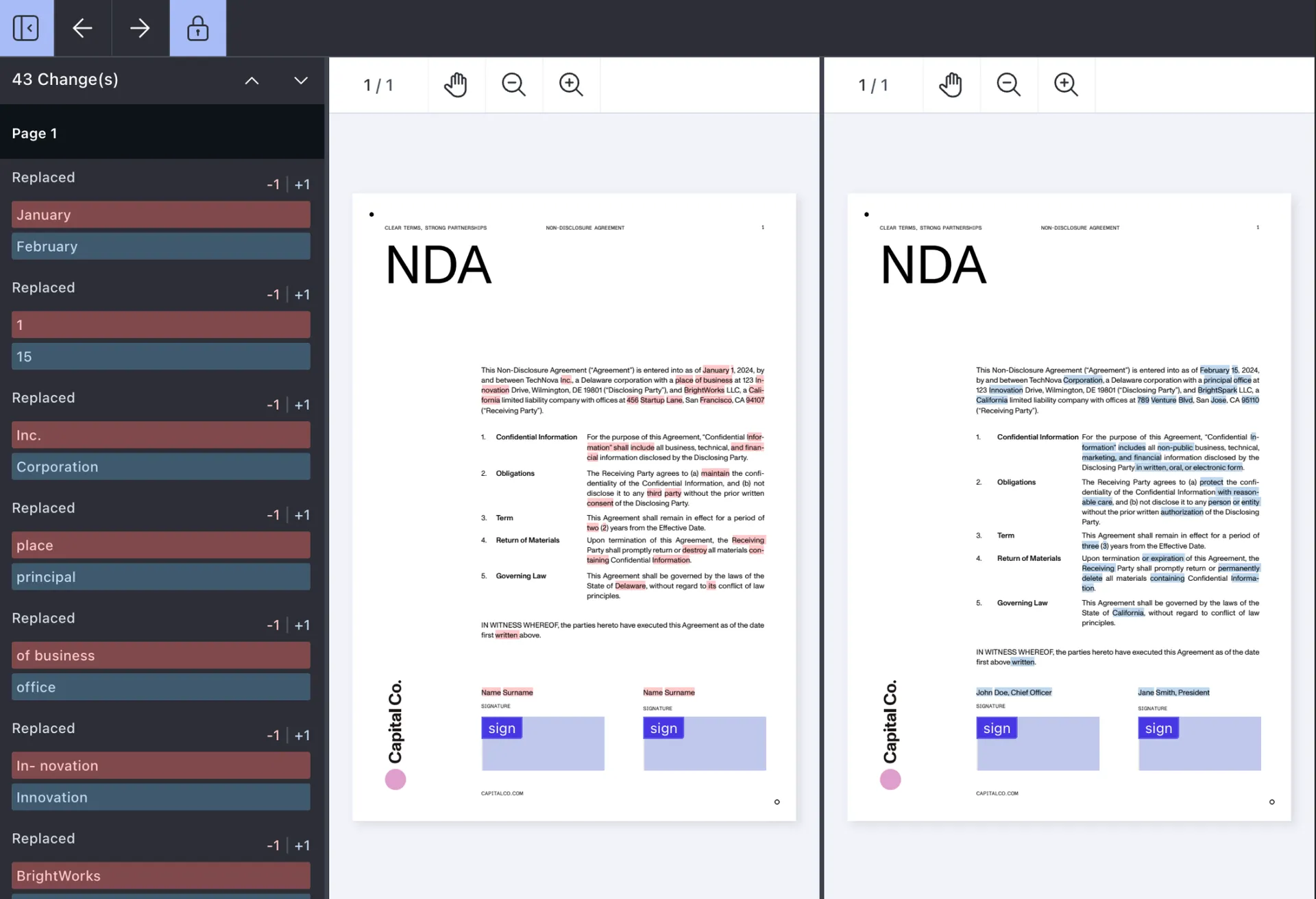
The comparison UI displays document provenance and comparison status by default. Use comparisonHeader to configure these details, including whether to show document information and comparison status. comparisonHeader also sets whether to prefer the file name or PDF title as the document identifier.
Customizing the UI
Every part of the UI is customizable and can be hidden or shown based on a user’s requirements using the options from NutrientViewer.defaultTextComparisonToolbarItems and NutrientViewer.defaultTextComparisonInnerToolbarItems.
To customize the primary toolbar, use the toolbarItems configuration option and pass the items you want to show in the toolbar. NutrientViewer.defaultTextComparisonToolbarItems defines the toolbar items. NutrientViewer.defaultTextComparisonInnerToolbarItems defines the secondary inner toolbar items, which you customize with the innerToolbarItems configuration option:
NutrientViewer.loadTextComparison({ ...restOfConfigurations, toolbarItems: [ { type: "prev-change" }, { type: "next-change" }, { type: "comparison-changes" }, { type: "scroll-lock" }, ],});Use the HIGH_CONTRAST_LIGHT or HIGH_CONTRAST_DARK theme for a high-contrast text comparison UI. For configuration, refer to the high contrast themes guide.
Customizing comparison highlights
The default colors that Nutrient Web SDK uses contrast well when overlaid. To choose which colors highlight the differences between the two documents, set the comparisonSidebarConfig.diffColors configuration option in the loadTextComparison method. The diffColors option accepts a TextComparisonDiffColors object with the following properties:
NutrientViewer.loadTextComparison({ ...restOfConfigurations, comparisonSidebarConfig: { diffColors: { deletionColor: new NutrientViewer.Color({ r: 255, g: 218, b: 185 }), deletionBackgroundColor: new NutrientViewer.Color({ r: 255, g: 240, b: 230, }), insertionColor: new NutrientViewer.Color({ r: 0, g: 128, b: 0 }), insertionBackgroundColor: new NutrientViewer.Color({ r: 200, g: 255, b: 200, }), }, openByDefault: true, // Optional: whether the comparison sidebar opens automatically. },});The comparisonSidebarConfig object accepts a TextComparisonSidebarConfiguration with the following properties:
diffColors— ATextComparisonDiffColorsobject defining colors for highlighting differences.openByDefault— A Boolean determining whether the comparison sidebar opens automatically when the comparison loads.
Programmatic text comparison
Text comparison also works programmatically, comparing the text of pages of different documents without loading the UI. To perform a text comparison operation, provide two documents and a set of options. The options configure the comparison operation.
Describing your documents
The NutrientViewer.DocumentDescriptor class provides all the necessary details about your documents for comparison:
filePath— Path to the document or anArrayBuffer.password— Optional password if the document is encrypted.pageIndexes— Required. A non-empty array of page indexes,[min, max]ranges, or a mix of both.
const originalDocument = new NutrientViewer.DocumentDescriptor({  filePath: "document-comparison/static/documentA.pdf",  pageIndexes: [0],});
const changedDocument = new NutrientViewer.DocumentDescriptor({  filePath: "document-comparison/static/documentB.pdf",  pageIndexes: [0],});
Comparing specific page ranges
When the matching page ranges between two documents are known in advance, set explicit ranges on each DocumentDescriptor using the pageIndexes property. This applies to the programmatic comparison API only and doesn’t affect loadTextComparison.
The pageIndexes property accepts an array of individual page indexes and/or [min, max] range pairs. Use this to compare a specific section of one document against a different section of the other. The array must be non-empty. DocumentDescriptor throws at construction time if pageIndexes is [].
// Compare pages 0–3 of the original against pages 0–3 of the changed document,// then compare pages 4–9 of the original against pages 5–10 of the changed document.const originalDocument = new NutrientViewer.DocumentDescriptor({  filePath: "document-comparison/static/documentA.pdf",  pageIndexes: [    [0, 3],    [4, 9],  ],});
const changedDocument = new NutrientViewer.DocumentDescriptor({  filePath: "document-comparison/static/documentB.pdf",  pageIndexes: [    [0, 3],    [5, 10],  ],});
Building a comparison around explicit page ranges requires rendering your own UI. Only loadTextComparison exposes the built-in side-by-side viewer.
Defining the comparison operation
The NutrientViewer.ComparisonOperation class outlines the comparison type and optional settings:
type— Type of comparison. The default isComparisonOperationType.TEXT. UseNutrientViewer.ComparisonOperationTypeto check for available comparison types. As of now, onlyComparisonOperationType.TEXTis supported.options— The settings for the operation. Currently,numberOfContextWordsis the only supported option, and it specifies the number of context words for the comparison.
const textComparisonOperation = new NutrientViewer.ComparisonOperation( NutrientViewer.ComparisonOperationType.TEXT, { numberOfContextWords: 2, },);Text comparison
The final step is to call the instance#compareDocuments method:
const comparisonResult = await instance.compareDocuments(  { originalDocument, changedDocument },  textComparisonOperation,);
console.log(comparisonResult);
Understanding the comparison result
The comparison provides a NutrientViewer.DocumentComparisonResult, which outlines:
type— The type of comparison (currently onlyComparisonOperationType.TEXTis supported).hunks— Hunks of detected text changes.documentComparisonResults— Results for the compared pages. Each entry may includeoriginalPageIndexandchangedPageIndex, and it containscomparisonResultsfor that page.
A hunk groups operations that describe how to transform the original text to the changed text. For instance, if a word is replaced, the hunk includes operations to delete the original word and insert the changed word. The structure of a hunk is:
originalRange— The range the hunk represents on the original page.changedRange— The range the hunk represents on the changed page.operations— The operations the hunk contains.
An operation represents a single insertion, a single deletion, or no change between the original and changed text. It’s composed of:
type— The operation type (“insert”, “delete”, or “equal”).text— The text the operation is based upon.originalTextBlocks— The rectangles the operation relates to in the original document.changedTextBlocks— The rectangles the operation relates to in the changed document.
A text block relates text to a specific region in a document:
range— The range in the document page the text block relates to.rects— The rectangles on the document page the text block refers to.
Example result
The result looks similar to the following:
{ "documentComparisonResults": [ { "changedPageIndex": 1, "comparisonResults": [ { "hunks": [ { "changedRange": { "length": 1, "position": 1 }, "operations": [ { "changedTextBlocks": { "range": { "length": 1, "position": 0 }, "rect": [341.1, 265.2, 0, 0] }, "originalTextBlocks": { "range": { "length": 1, "position": 1 }, "rect": [341.1, 265.2, 74.4, 288.0] }, "text": "1", "type": "delete" } ], "originalRange": { "length": 1, "position": 1 } } ], "type": "text" } ], "originalPageIndex": 0 } ]}These steps enable you to pinpoint changes between documents. They also enable you to build your own custom user interface to display the results, as demonstrated in this sample project(opens in a new tab). Refer to our public API documentation for more technical details about the Text Comparison API and how to use it in your implementation.
Compare documents stored in Document Engine
Text comparison runs in the browser in standalone mode. documentA and documentB take a URL or an ArrayBuffer and, starting with 1.23.0, an object with source and fileName. The filePath of a DocumentDescriptor takes a URL or an ArrayBuffer. None of them accepts a Document Engine document ID, and an instance connected to Document Engine doesn’t support compareDocuments(). To compare documents stored in Document Engine, pass their bytes to a separate standalone comparison. Your Document Engine viewer stays as it is for everything else.
The standalone comparison uses a Web SDK license key, not your Document Engine license. Set licenseKey to a Web SDK license key that includes the Text Comparison component. Contact Sales if your license doesn’t include it.
Download each document from your backend with the Document Engine API. The following example authenticates with the API authentication token, which grants full access to every document on Document Engine. Keep the token on your server and never send it to the browser. For more information, refer to the Document Engine security guide.
The endpoint returns the latest version of the document, including its annotations. To fetch the file exactly as it was uploaded, add source=true to the request. If a document was uploaded as an image or an Office file such as DOCX, source=true returns that original file, not a PDF. compareDocuments() rejects those files as not in PDF format, and loadTextComparison rejects images, so compare the PDF that Document Engine returns without source=true instead.
For a password-protected document, send its password in the pspdfkit-pdf-password header. Document Engine returns the file still encrypted, so the next step depends on the API:
- For
compareDocuments(), pass the password aspasswordtoNutrientViewer.load()and to eachDocumentDescriptor. loadTextComparisonhas no password option, so download a copy without password protection instead. Add theremove_password_protection=truequery parameter and send the owner password. The parameter requires Document Engine 1.16 or later, and Document Engine rejects it together withsource=true.
For more information, refer to the password-protected PDFs guide.
The following Node.js route uses Express to return a document to your app. As written, it returns any document whose ID it receives, so add your own authorization check where the comment indicates:
import express from "express";
const app = express();const DOCUMENT_ENGINE_URL = process.env.DOCUMENT_ENGINE_URL;const API_AUTH_TOKEN = process.env.API_AUTH_TOKEN;
app.get("/comparison-documents/:documentId", async (req, res) => {  // Check that the signed-in user is allowed to read this document first.  try {    const response = await fetch(      // Append `?source=true` or `?remove_password_protection=true` here.      `${DOCUMENT_ENGINE_URL}/api/documents/${encodeURIComponent(req.params.documentId)}/pdf`,      {        headers: {          Authorization: `Token token=${API_AUTH_TOKEN}`,          // For a password-protected document, add its password:          // "pspdfkit-pdf-password": documentPassword,        },      },    );    if (!response.ok) {      res.sendStatus(response.status);      return;    }    res.type(response.headers.get("content-type") ?? "application/pdf");    res.send(Buffer.from(await response.arrayBuffer()));  } catch (error) {    console.error(error);    res.sendStatus(502);  }});
app.listen(3000);
In the browser, fetch both documents as ArrayBuffer objects and pass them to loadTextComparison:
async function fetchDocument(documentId) {  const response = await fetch(    `/comparison-documents/${encodeURIComponent(documentId)}`,  );  if (!response.ok) {    throw new Error(`Failed to fetch document ${documentId}: ${response.status}`);  }  return response.arrayBuffer();}
try {  const [documentA, documentB] = await Promise.all([    fetchDocument("<original-document-id>"),    fetchDocument("<changed-document-id>"),  ]);
  await NutrientViewer.loadTextComparison({    container: "#comparison-container",    licenseKey: "YOUR_LICENSE_KEY",    documentA,    documentB,  });} catch (error) {  console.error(error);}
Starting with 1.23.0, pass { source: documentA, fileName: "contract-v1.pdf" } instead of the bare ArrayBuffer to show a file name in the comparison header.
For programmatic text comparison, load each document in a headless standalone instance and wrap each ArrayBuffer in a DocumentDescriptor. NutrientViewer.load() takes ownership of the ArrayBuffer it receives, so pass it a copy with slice(0). For more information, refer to the open a document from an ArrayBuffer guide.
The following example compares every page. An index past the last page throws, so the example reads each document’s page count from totalPageCount. Extra pages in the longer document come back as results with only one page index and no hunks. To compare other pages, see comparing specific page ranges. This example reuses fetchDocument() from the previous example:
let originalInstance;let changedInstance;
try {  const [documentA, documentB] = await Promise.all([    fetchDocument("<original-document-id>"),    fetchDocument("<changed-document-id>"),  ]);
  originalInstance = await NutrientViewer.load({    headless: true,    licenseKey: "YOUR_LICENSE_KEY",    document: documentA.slice(0),  });  changedInstance = await NutrientViewer.load({    headless: true,    licenseKey: "YOUR_LICENSE_KEY",    document: documentB.slice(0),  });  const changedPageCount = changedInstance.totalPageCount;  NutrientViewer.unload(changedInstance);  changedInstance = undefined;
  const comparisonResult = await originalInstance.compareDocuments(    {      originalDocument: new NutrientViewer.DocumentDescriptor({        filePath: documentA,        pageIndexes: [[0, originalInstance.totalPageCount - 1]],      }),      changedDocument: new NutrientViewer.DocumentDescriptor({        filePath: documentB,        pageIndexes: [[0, changedPageCount - 1]],      }),    },    new NutrientViewer.ComparisonOperation(      NutrientViewer.ComparisonOperationType.TEXT,      { numberOfContextWords: 2 },    ),  );
  console.log(comparisonResult);} catch (error) {  console.error(error);} finally {  if (originalInstance) NutrientViewer.unload(originalInstance);  if (changedInstance) NutrientViewer.unload(changedInstance);}
Try Text Comparison
Test how Text Comparison works with our online demo. Upload two PDF documents to compare them side by side and navigate through the differences. See how our comparison engine highlights additions, deletions, and modifications between your documents.