



Laravel PDF viewer: Build a feature-rich viewer with Nutrient

Table of contents

Build a Laravel PDF viewer using Nutrient Web SDK: Install the SDK, copy assets to your public directory, add the viewer to a Blade template, and initialize with NutrientViewer.load(). View PDFs directly in the browser with client-side rendering.
Watch the tutorial video below.

For a detailed comparison of Laravel’s PDF and image viewer use cases, check out how to build a Laravel image viewer.
What is a Laravel PDF viewer?
A Laravel PDF viewer renders PDF documents in a web browser without requiring users to download them or use a separate PDF reader application.
Nutrient Laravel PDF viewer
We offer a commercial Laravel PDF viewer SDK that integrates into your web application. It includes 30+ features for viewing, annotating, editing, and signing documents in the browser. The SDK ships with a polished UI that you can extend or simplify based on your use case.
- A prebuilt UI for a better user experience
- 15+ annotation tools for document collaboration
- Support for PDF, MS Office, and image viewing
- Dedicated support from engineers to speed up integration
Example of our Laravel PDF viewer
To try our Laravel PDF viewer, upload a PDF, JPG, PNG, or TIFF file by clicking Open Document under the Standalone option (if you don’t see this option, select Choose Example from the dropdown). Once your document is displayed, try drawing freehand, adding a note, or applying a crop or an eSignature.
Requirements
You need:
You can install PHP via XAMPP(opens in a new tab), MAMP(opens in a new tab), or Homebrew(opens in a new tab).
Add composer to your path directory:
export PATH="$HOME/.composer/vendor/bin:$PATH"Creating the project
Open your terminal and run the following commands to create a new Laravel project. When prompted, select the default options by pressing Enter:
laravel new nutrient-viewercd nutrient-viewerThis creates a fresh Laravel installation for integrating Nutrient Web SDK.
Adding Nutrient to your project
Install the SDK via npm:
npm i @nutrient-sdk/viewerpnpm add @nutrient-sdk/vieweryarn add @nutrient-sdk/viewerThen copy the SDK’s distribution files into your public directory:
cp -R ./node_modules/@nutrient-sdk/viewer/dist/ ./public/assets/Your public/assets/ folder should now contain:
nutrient-viewer.jsnutrient-viewer-lib/(fonts, WebAssembly files, etc.)
Adding a PDF document
Add a PDF document (e.g. document.pdf) to your public/ folder. This will be the file rendered in the viewer. You can use our demo document as an example.
Adding the viewer to your Blade template
Open the resources/views/welcome.blade.php file and update its content:
<!DOCTYPE html><html lang="en">  <head>    <meta charset="UTF-8" />    <meta      name="viewport"      content="width=device-width, initial-scale=1.0"    />    <title>Nutrient Laravel PDF Viewer</title>  </head>  <body>    <div id="nutrient" style="width: 100%; height: 100vh;"></div>
    <script type="module">      import '/assets/nutrient-viewer.js';
      const container = document.getElementById('nutrient');      const baseUrl = `${window.location.protocol}//${window.location.host}/assets/`;
      NutrientViewer.load({        container,        document: 'document.pdf',        baseUrl,      })        .then((instance) => {          console.log('Nutrient loaded', instance);        })        .catch((error) => {          console.error(error.message);        });    </script>  </body></html>
The basic file structure of your Laravel project will look like this:
/public document.pdf /assets nutrient-viewer.js /nutrient-viewer-lib/resources /views welcome.blade.phpRunning your Laravel app
From the project root, start the server:
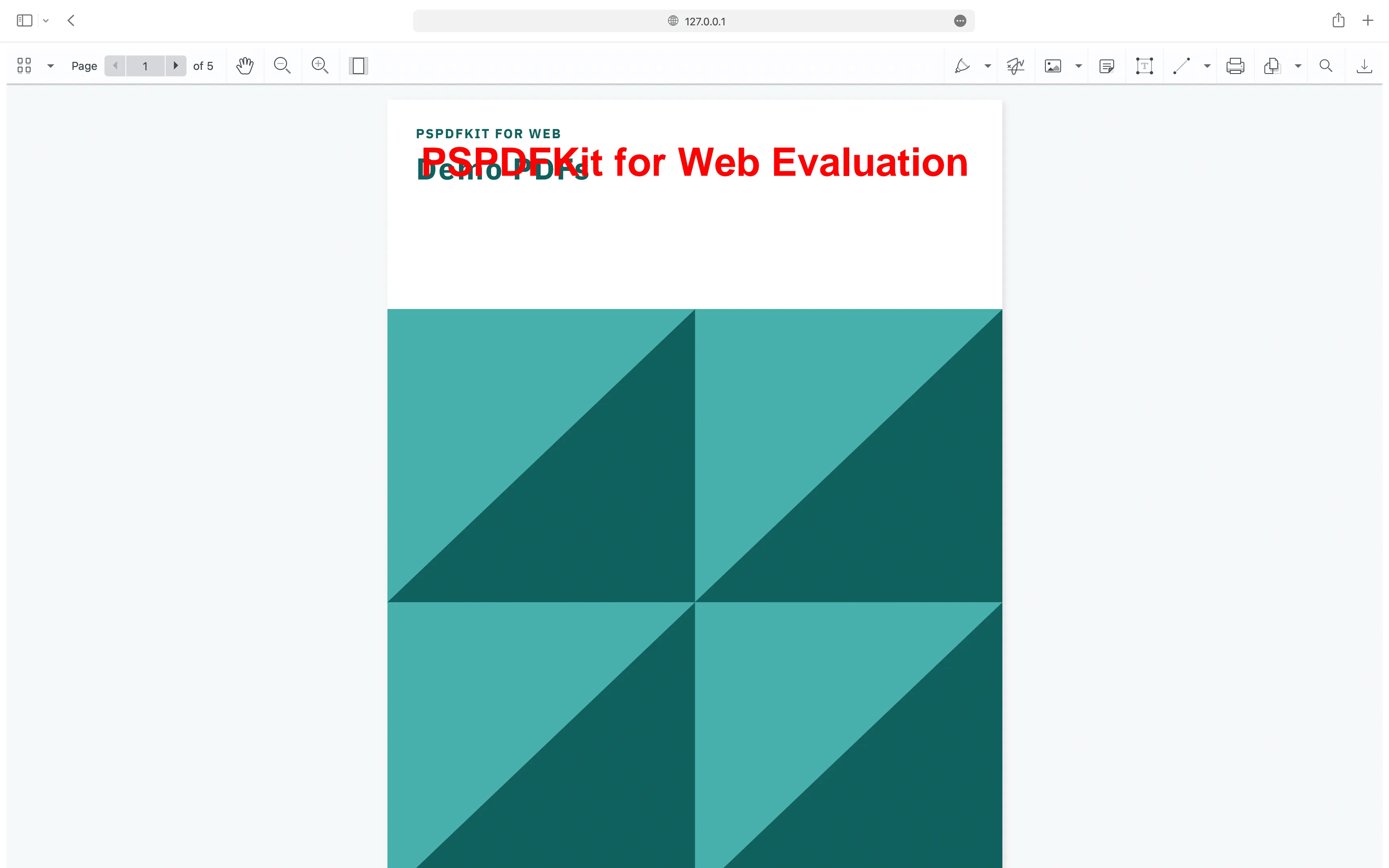
php artisan serveVisit http://127.0.0.1:8000 in your browser. You’ll see your PDF document rendered in the viewer.
Advanced features
Beyond basic viewing, Nutrient includes tools for document collaboration and customization:
Annotation tools
More than 15 annotation tools including freehand drawing, highlighting, comments, and shapes. See 8 common PDF annotation types for details.
Form filling
Built-in form filling lets users complete interactive PDF forms (text fields, checkboxes, dropdowns) directly in the viewer.
Digital signatures
Digital signatures for electronic document signing. See how to add digital signatures to PDFs using Laravel for implementation details.
UI customization
UI customization options let you hide, reorder, or style viewer elements to match your application.
Conclusion
In this tutorial, you built a Laravel PDF viewer that renders documents directly in the browser. You learned how to:
- Install and configure Nutrient Web SDK in a Laravel project
- Copy SDK assets to your public directory
- Initialize the viewer in a Blade template using
NutrientViewer.load()
From here, you can extend the viewer with annotations, form filling, digital signatures, or customize the UI to match your application.
Nutrient also works with other frameworks including Angular, Vue.js, and React.js. To get started, try the demo or start a free trial.
For questions or integration help, contact our Support team.
FAQ
A Laravel PDF viewer renders PDF documents directly in a web browser. Users can view PDFs without downloading them or using an external PDF reader application.
To integrate Nutrient into a Laravel project:
- Install the SDK via npm (
npm install @nutrient-sdk/viewer). - Copy the SDK assets to your
public/assetsdirectory. - Add a container
divin your Blade view file where Nutrient will be mounted. - Import and initialize the SDK using
NutrientViewer.load()with abaseUrlpointing to your assets.
Yes. Nutrient allows extensive customization of the PDF viewer. You can configure the toolbar, annotation tools, and the overall UI to fit your specific needs and design preferences.
Common use cases include viewing contracts, reports, manuals, and other documents that need to be displayed and interacted with directly within a web application.
Nutrient includes annotations, form filling, digital signatures, and a customizable UI for document viewing and interaction.


